Backup & Security
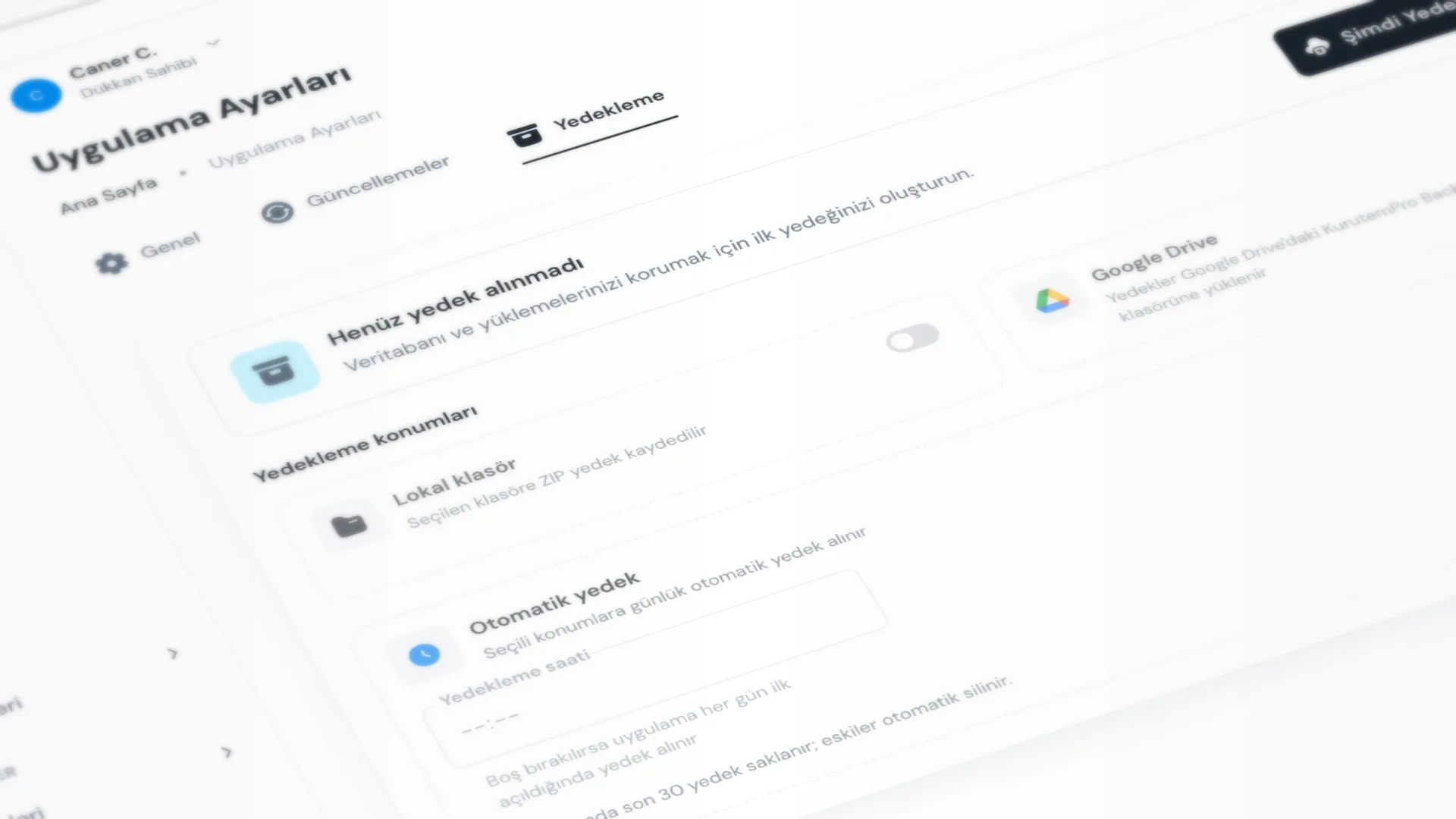
KurutemPro keeps your data on your computer, so you can keep taking receipts, managing customers, and running reports even if the internet drops. Backup copies that data to a local folder and, optionally, Google Drive so you are protected against hardware failure or accidental deletion.
Menu path: Settings → App Settings → Backup.
Step by step: backup
1. Choose a backup destination
Set at least one option under Backup locations:
- Local folder: use Choose Folder to choose where ZIP backups are saved.
- Google Drive: use Connect Google to link your account; backups upload to the KurutemPro Backups folder on Drive.
Local backup does not need internet. Google Drive needs a connected account and internet.
2. Run a manual backup
With Backup Now you can create a backup immediately. Status shows Last backup and success / failure. Before the first backup you see No backup yet.
3. Turn on automatic backup
When Automatic backup is on, daily backups go to the selected destinations.
- If Backup time is empty, the app backs up on the first launch each day.
- If you set a time, backup runs at that time. If the app is closed then, the backup finishes on the next launch.
- Each destination keeps the last 30 backups; older ones are deleted automatically.
4. Security habits
- The live data stays on your computer; backup saves a copy to the destination you chose.
- Prefer both local and Google Drive when you can: one on the machine, one in the cloud.
- When staff leave the counter, Lock the session so the screen is not left open.
Good to know
- A backup is a ZIP that includes the database and uploads (for example product images).
- A Google Drive backup lives in your Google account; it is not a KurutemPro-hosted cloud archive.
- Offline use keeps the shop running day to day; backup is for disaster recovery.
Tips
- Before moving to a new computer or doing a major cleanup, take a backup with Backup Now.
- Put the local folder on an external disk or second drive when you can, not only on the desktop.
- To confirm automatic backup is working, check the Last backup line from time to time.
- If you disconnect Google, backups stop going to Drive. Keeping local folder backup on is a good idea.
Try KurutemPro for free
Download the desktop app and start with receipts, customer tracking, and reporting right away.