Barcode Delivery
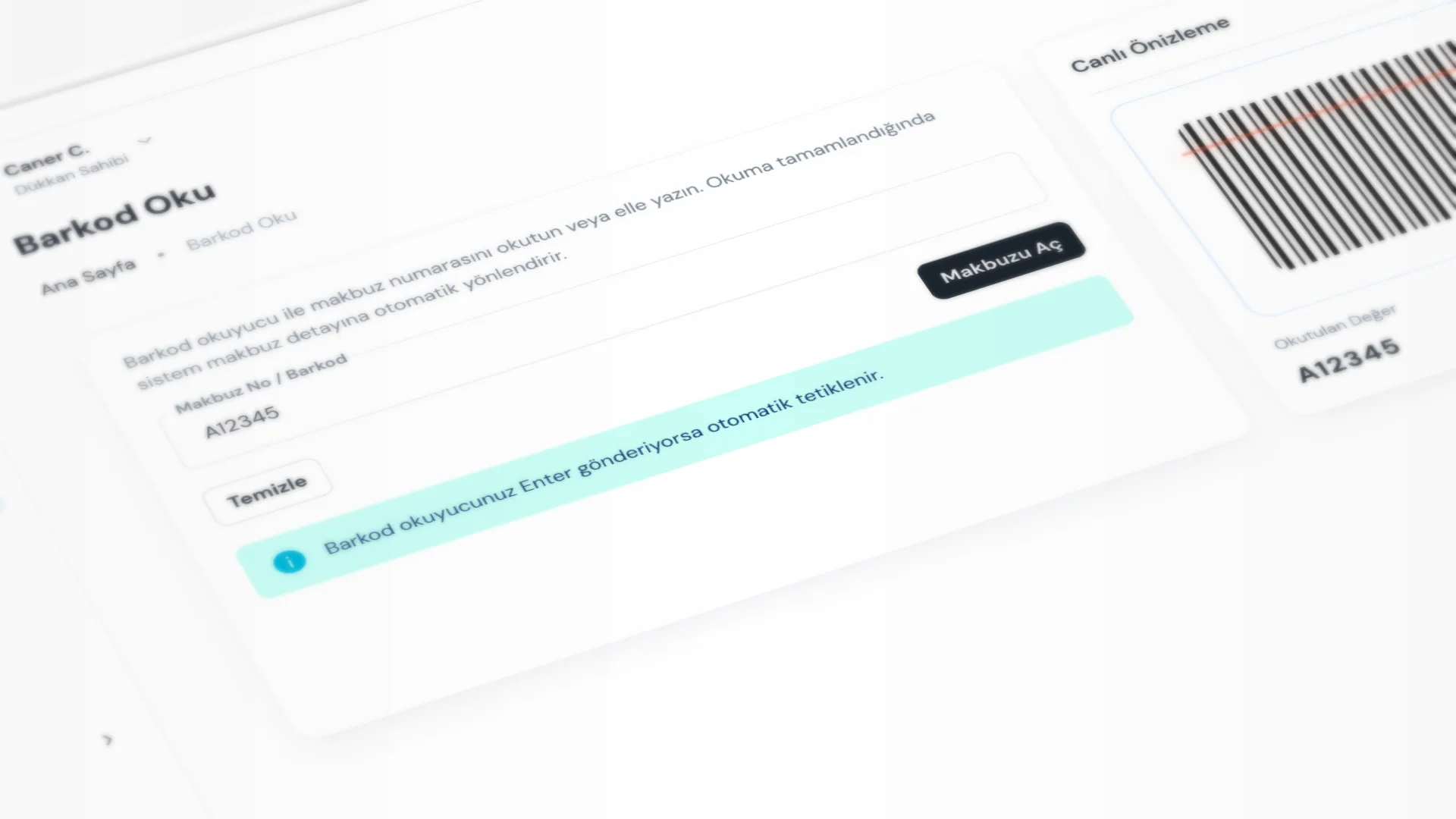
The Barcode Reader screen opens the matching receipt detail in seconds by scanning the barcode on the customer’s receipt (or typing the receipt number). You scan instead of searching the list: faster service, lower risk of opening the wrong receipt.
Menu path: General → Barcode Reader.
Step by step: find a receipt by barcode
1. Open Barcode Reader
For pickup at the counter, go to Barcode Reader. Focus is usually on the input field, so you can scan as soon as the reader is ready.
2. Scan the barcode or type the number
Scan the barcode on the receipt with a barcode reader. If you do not have a reader, type the number into Receipt No / Barcode and search.
- Most readers send Enter; when they do, search is triggered automatically.
- The number is not case-sensitive.
- If audio feedback is on, you hear a short sound on a successful or failed scan.
3. Go to receipt detail
When the receipt is found, the app redirects you to receipt detail. There you see the customer, items, status, remaining collection, and delivery actions.
- If it is not found, you get a warning; check the number and try again.
- The last scanned barcode may stay on screen as a reminder.
4. Deliver (and collect payment if needed)
Complete the flow with Deliver on the detail screen. If payment is due on delivery or a partial collection is needed, a collection step appears.
- If not all items are going out, use partial delivery for the selected lines.
- If status is Not Ready, you may mark ready first depending on your workflow; barcode only opens the right receipt quickly.
Good to know
- The barcode is printed on the receipt from Receipt & Intake (when barcode display is enabled in receipt settings).
- When the shop is busy, opening a receipt from Barcode Reader is usually faster than searching the list.
- You can still find receipts via the list or search; barcode helps most when the customer has the receipt in hand.
Tips
- Make sure the barcode prints on your receipt template; an unreadable barcode slows pickup.
- Plug the barcode reader into the computer with USB. When you scan, the number is typed into the field and Enter starts the search; no separate software to install.
- After a scan, check the customer name so you do not act on the wrong receipt.
Try KurutemPro for free
Download the desktop app and start with receipts, customer tracking, and reporting right away.