Receipt & Intake
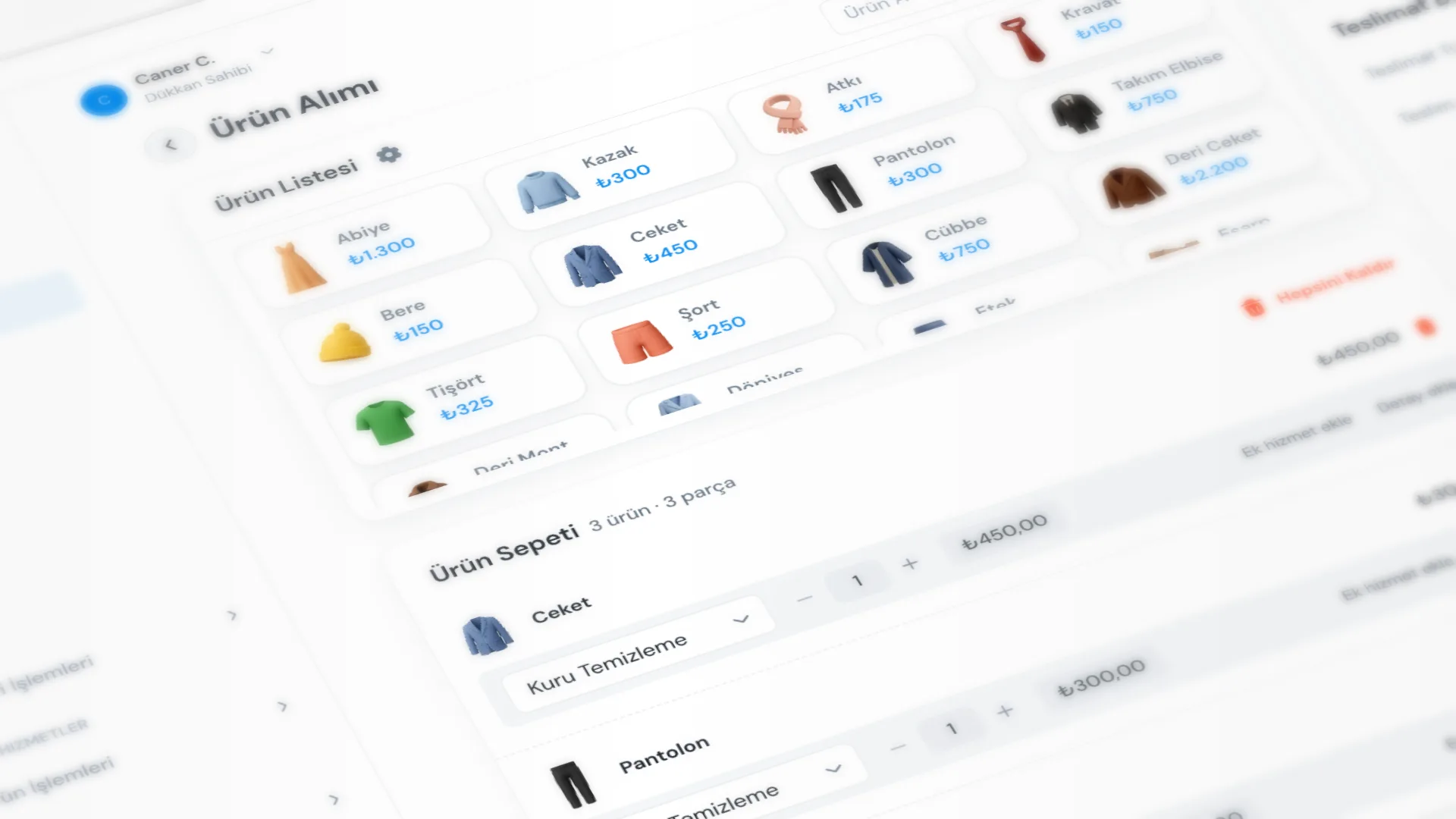
The New Receipt screen is the main counter flow: pick a customer, add products to the basket, set services and pricing, then save and print the receipt. The goal is fast product intake, clear pricing, and clean data for later delivery and payment collection.
Menu path: General → New Receipt.
Step by step: product intake
1. Select or add a customer
Find an existing customer or create a new one. Search by phone or name keeps the counter moving.
- If the customer has a defined discount percentage, it can apply to the basket automatically.
- Blacklisted customers show a warning during product intake so you catch risky accounts early.
- For notes, past debt, and receipt history on the customer card, see Customers & Ledger.
2. Add products and services
You can pick a product from the list (icon-based selection), choose a service per line (e.g. dry cleaning, ironing), and enter the quantity. Unit price and line total update immediately.
- For multiple pieces of the same item, you can increase quantity or keep them as separate lines.
- You can manage services under Products & Services → Services.
- You can update product–service prices under Products & Services → Price List; for bulk markup or discount, use Price Adjustment.
- Product sort order: you can use “Edit sort order” to choose Alphabetical or Custom order. In custom order, you can drag frequent items to the top; the order stays for the product intake screen.
- For why icon-based picking helps speed, see Product Icons.
3. Add extra services
You can attach extra services to a line (e.g. stain removal, express). Catalog: Products & Services → Extra Services.
- Price type can be Fixed or Percentage; percentage is calculated from the selected service price (or a defined base service).
- You can define extras ahead of time to speed product intake, and drag to reorder the list.
- The price breakdown shows how extras land on the line.
- When needed, you can use manual price on a line for exceptions.
4. Add item details
You can use item details for labels like stain or burn, plus an optional note. Those stay on the receipt so staff know what needs attention at processing and delivery.
- You can manage labels under Products & Services → Item Details.
- You can predefine common options so product intake is just a pick from the list.
- The note field is for free-form text (e.g. “stain on left sleeve”).
5. Apply a discount or markup
Add a discount or markup to the basket total, as an amount or a percentage.
- You cannot apply a discount before products are in the basket.
- A customer discount may apply automatically; you can still add a manual discount or markup.
- Discount cannot exceed the basket total (the app caps the applied amount).
- Subtotal, discount, markup, and grand total appear in the payment summary.
6. Payment type and delivery date
Choose a payment type:
- Prepaid: cash, credit card, or transfer
- Pay on delivery
- Add to debt ledger
Set the delivery date (and delivery type, such as store pickup) for the day you promised the customer. A default delivery offset can come from receipt settings.
7. Save, or save and print
Saving assigns the next receipt number automatically. Save & Print sends the job to the printer at the same time; copy count and printer preferences live in receipt settings.
- Saving alone is fine if you want to print later.
- For logo, contact details, and visible fields, see Customizable Receipt; for reprinting a large number slip, see Numerator.
Good to know
Before product intake, catalogs are prepared under Products & Services:
- Product List and images → Product Icons
- Services, Price List, Extra Services, Item Details
After product intake, work continues in the Receipt List and receipt detail:
- Statuses: Not Ready → Ready → Delivered (or Partially Delivered when needed)
- Update collection from detail, remaining balance, and debt ledger balance
- Ready notifications via SMS / WhatsApp (when messaging settings are enabled)
- Cancel and edit (permission-dependent)
To find a receipt by barcode at the counter, see Barcode Delivery; for kanban-style status moves, see Quick Operations.
Tips
- Fill product, service, extra service, and item-detail catalogs first so the product intake screen stays a selection screen, not a setup screen.
- Put frequent products at the top with Custom order; staff ramp-up gets shorter.
- Confirm the customer before saving; the wrong account also misroutes debt and SMS.
- Test the printer and copy count before peak hours.
- Prepaid / pay-on-delivery / ledger splits feed reports; choosing the right payment type keeps day-end (Z) and period reports clean.
Try KurutemPro for free
Download the desktop app and start with receipts, customer tracking, and reporting right away.