Detailed Reporting
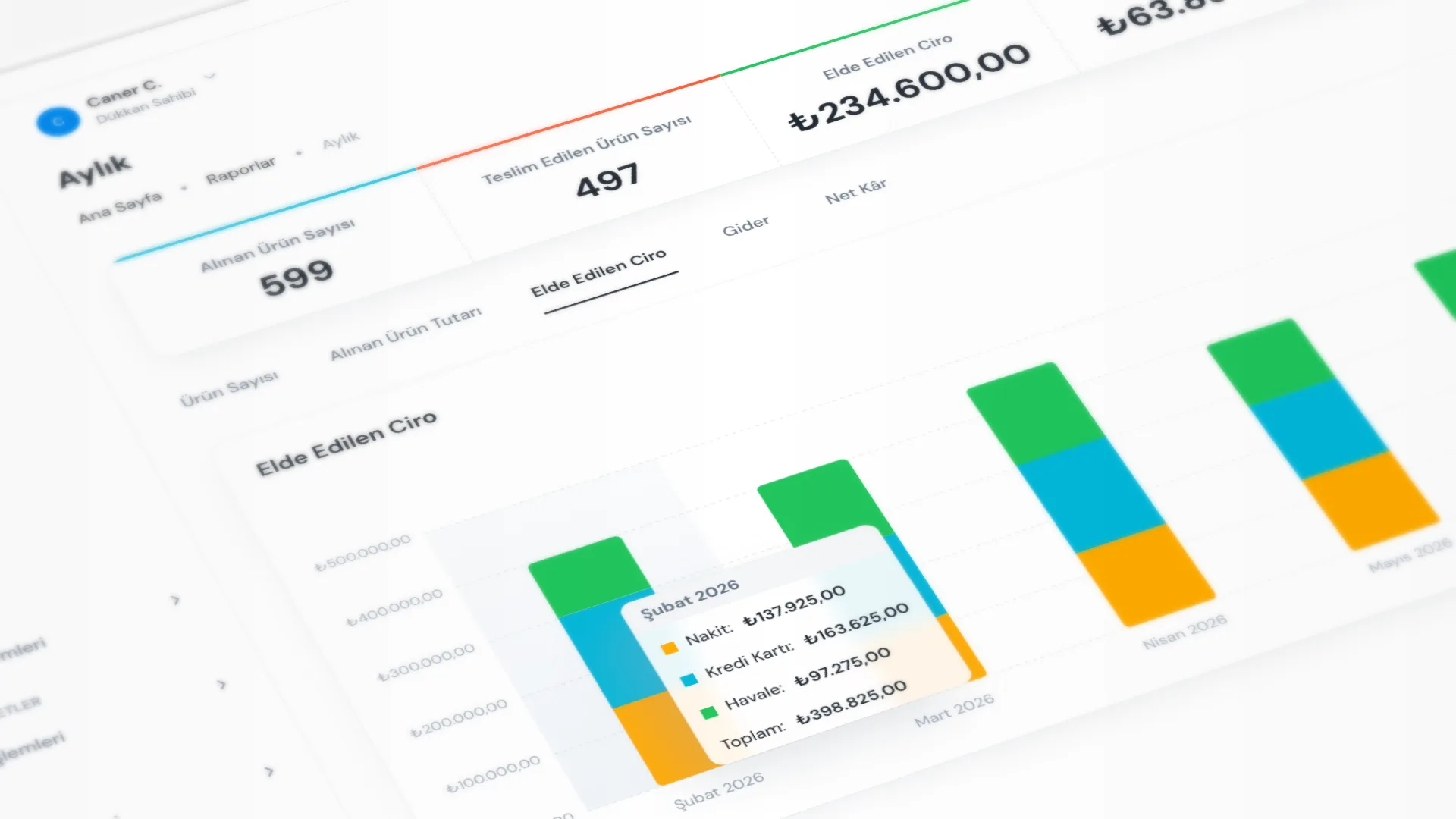
Reports show revenue, expenses, net profit, and received/delivered products by period. Open the right screen from one menu to close the day, compare periods, or see which products are busiest.
Menu path: Reports (under it Financial Reports and Product Reports).
Step by step: reading reports
1. Open a period financial report
Under Reports → Financial Reports, pick a period:
- Daily · Weekly · Monthly · Yearly
- For a custom span, use By Date Range (presets or custom dates; max 366 days)
Summary cards show Received Products, Delivered Products, Revenue, Expenses, and Net Profit. Charts cover payment mix (cash / card / transfer) and expense categories. The yearly screen also includes revenue, expense, and net profit comparisons.
2. Run Day-End (Z)
For cash-up, go to Reports → Financial Reports → Day-End (Z).
- Pick a date and click Generate Report
- Collections (cash, card, transfer, total), Expense, Net
- Product summary (received / delivered pieces) and credit ledger (debt added / payments collected)
- Print or Preview for a slip; use Export for a file
3. Open product reports
Reports → Product Reports:
- Received Products: what came in during the period
- Delivered Products: what went out during the period
Choose a date range and click Generate Report. Summary: total quantity, pieces, unique products; the table shows product / service, share, and amount. Group by Product + Service or Product Only.
4. Export
On every report screen, Export:
- As PDF
- As Excel
- As CSV
Enough to archive a period or hand it to accounting.
Good to know
- Accurate revenue and profit need expenses entered regularly. See Expense Tracking.
- Credit ledger and collections tie to customer debt. See Customers & Ledger.
- Home dashboard cards are a quick glance; detail and export live on the report screens.
Tips
- Running Day-End (Z) every day catches cash / card / transfer gaps early.
- For pricing or promo decisions, check Monthly or Yearly comparisons.
- The “top products” list on product reports shows which items are busiest.
- Before you export or compare, confirm the date range is the period you intend.
Try KurutemPro for free
Download the desktop app and start with receipts, customer tracking, and reporting right away.