Expense Tracking
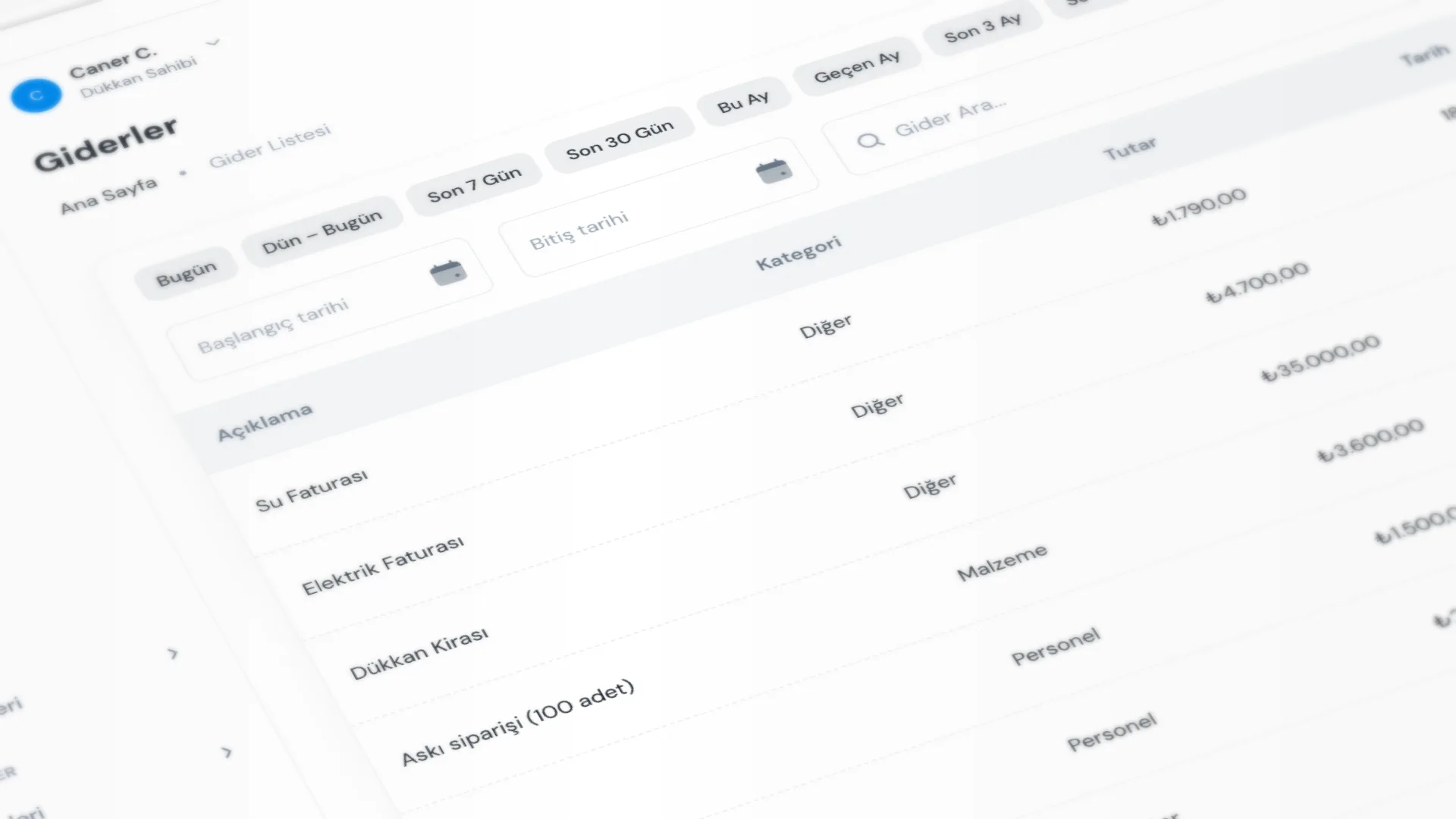
Expense Tracking records shop spending by category and date. Regular entries keep Expenses and Net Profit accurate on the home screen and in financial reports.
Menu path: Expenses → Expense List (categories: Expenses → Expense Categories).
Step by step: logging expenses
1. Set up expense categories
Define categories under Expenses → Expense Categories (for example rent, utilities, supplies).
- Category name is required; you can add an optional description and icon.
- Mark one category as Default; it is preselected on the new expense form.
- Drag the list to reorder categories.
2. Add an expense
Go to Expenses → Expense List → Add Expense, or edit from the list.
- Description (required)
- Amount (required)
- Category (required)
- Date (required; defaults to today)
Save with Add Expense / Update Expense.
3. Use the list
On Expense List you can search (Search expenses…) and filter by date range. Columns show description, category, amount, and date.
4. See it in reports
Logged expenses appear in:
- Home: Today’s Expenses and Today’s Net Profit
- Detailed Reporting financial reports: Expenses, category breakdown, and net profit
- Day-End (Z) summary expense line
Good to know
- Profit needs expenses and receipt collections read together; see the reports page.
- Using the same categories consistently makes period-end “where did it go?” easier.
- Dating a large one-off expense correctly keeps the daily Z clean.
Tips
- Log the expense on the day it happened; batching later is easy to forget.
- Keep categories few and clear; too many fragments make reports harder to read.
- Set the default category to the type you use most.
- Review that day’s expenses before day-end.
Try KurutemPro for free
Download the desktop app and start with receipts, customer tracking, and reporting right away.