Quick Operations
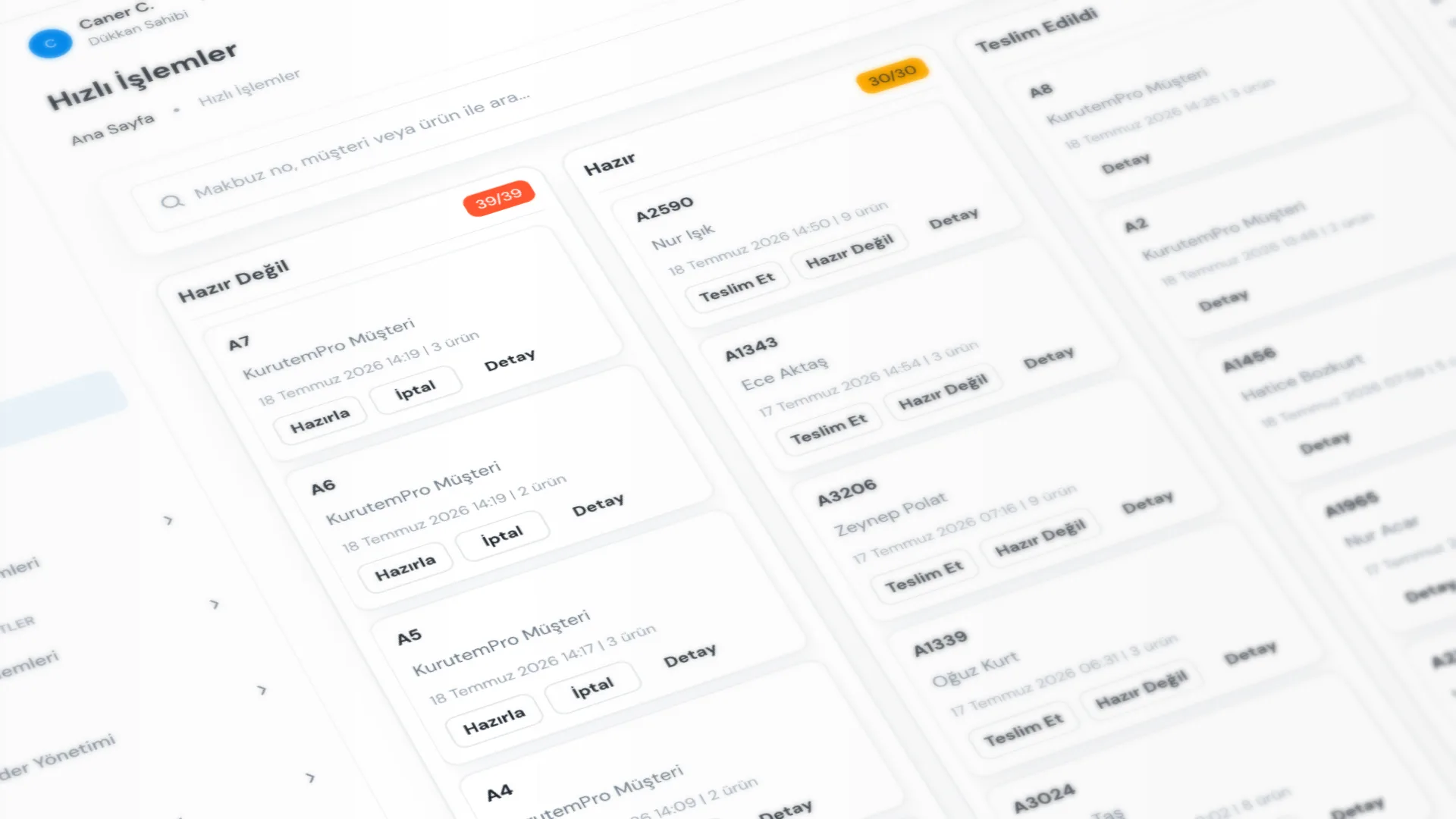
Quick Operations is a board that shows receipts in status columns. Drag a card or use the buttons on it to move between Not Ready, Ready, Delivered, and Cancel, without opening the full list, so the counter keeps moving.
Menu path: General → Quick Operations.
Step by step: quick operations
1. Open the board
Go to General → Quick Operations. You see four columns: Not Ready, Ready, Delivered, Cancel.
2. Find the receipt
Use Search by receipt number, customer, or product…, or refresh the list. You can also open Receipt List from the page.
3. Change the status
There are two ways:
- Drag the card to the target column
- Use the buttons on the card (e.g. Make Ready, Deliver, Not Ready, Cancel)
Detail opens the receipt detail screen.
4. After Ready and Deliver
When you mark a receipt Ready, the SMS & WhatsApp notification dialog may open if conditions are met; if you close it, the receipt stays Ready.
On Deliver, a delivery dialog opens if payment is still owed. Delivery from this board is a full delivery; for line-by-line partial delivery, use receipt detail.
Good to know
- Partially delivered receipts appear in the Ready column; there is no separate column.
- Each column lists up to 60 cards; use search or the receipt list for more.
- Delivered cards have no status buttons; drag them to move back.
- Viewing the board requires the Quick operations permission.
Tips
- At a busy counter, search by receipt number.
- If you do not want to send a ready notification, close the dialog; the receipt stays Ready.
- For cancel, dragging is often the fastest path.
- For detailed collection or partial delivery, open Detail.
Try KurutemPro for free
Download the desktop app and start with receipts, customer tracking, and reporting right away.