Blacklist
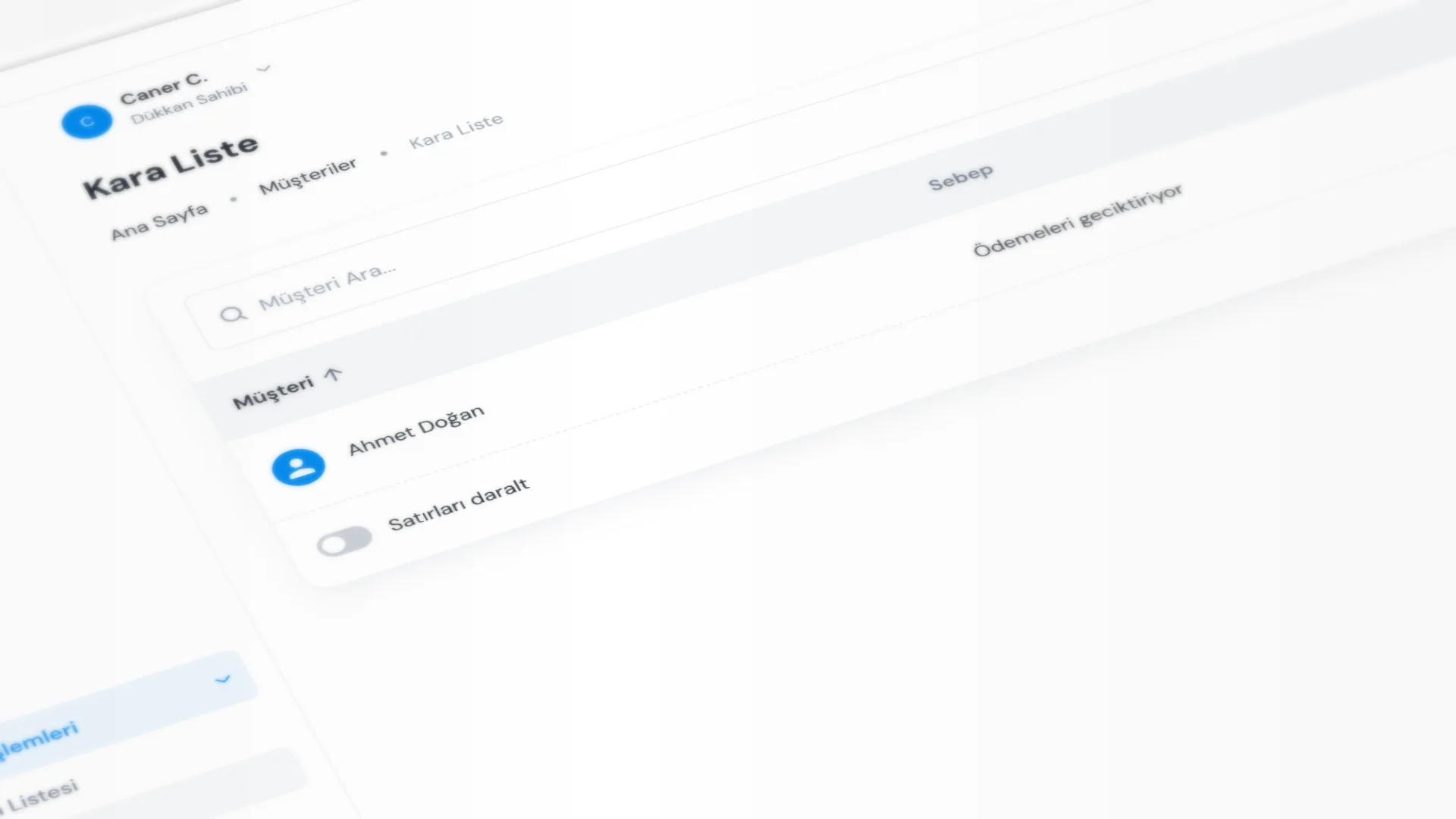
Blacklist lets you flag risky customers with a staff-only record. The reason is for the team only; it is not shown to the customer. Use it to manage who is flagged and why.
Menu path: Customers → Blacklist. Adding is done from Customer List.
Step by step: blacklist
1. Add a customer to the blacklist
On Customers → Customer List, open the row menu and choose Add to Blacklist.
- Optionally enter a Reason (staff note; not visible to the customer).
- If reason is empty, a default text is saved.
- Status on the list shows as Blacklisted.
2. Use the Blacklist screen
On Customers → Blacklist you see flagged customers, reasons, and date added.
- Search with Search customers…
- Edit updates the reason only (Save Changes).
3. Remove from the blacklist
You can remove from either place:
- Customer List row menu → Remove from Blacklist
- Blacklist screen → Remove from Blacklist
4. Product intake and debt
- In Receipt & Intake, selecting a blacklisted customer shows a warning (with the reason when one is set). Product intake is not blocked; staff are informed.
- Open-balance warnings are independent of blacklist; for debt see Customers & Ledger and Debt Tracking.
Good to know
- Blacklist is a risk record; it does not create or clear a debt balance automatically.
- The reason is not printed on the receipt; it appears only on staff screens.
- Access is permission-based: viewing and managing can be separate.
Tips
- Keep the reason short and clear so the next shift understands why.
- If someone was added by mistake, fix it right away with Remove from Blacklist.
- Writing the risk on the blacklist beats relying on verbal handoff alone.
- Do not mix debt problems with behavior risk; manage debt and blacklist separately when both apply.
Try KurutemPro for free
Download the desktop app and start with receipts, customer tracking, and reporting right away.