Calendar
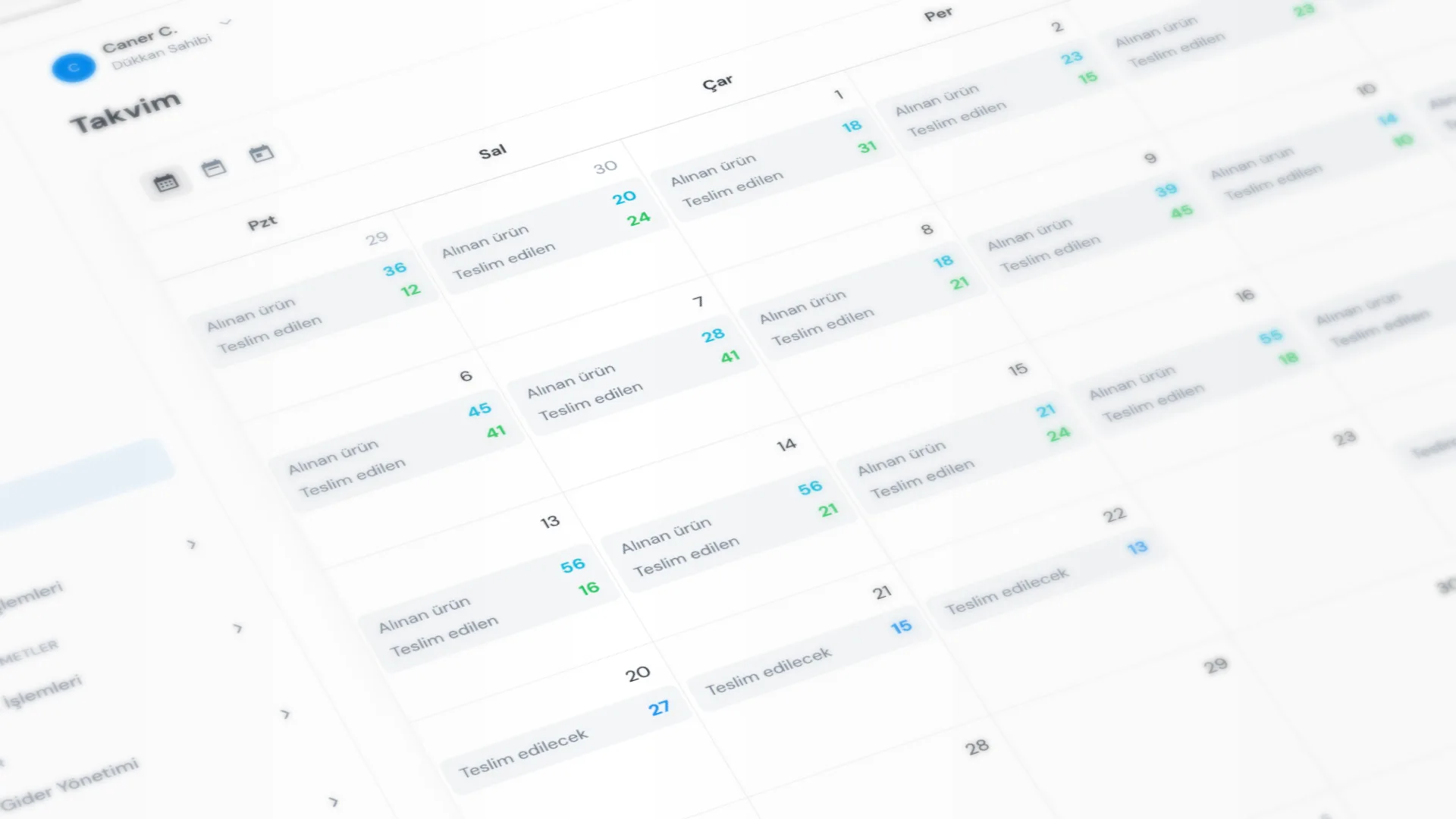
Calendar shows what is due on which day based on each receipt’s Due date. Use the dates you set during product intake to follow the day’s workload.
Menu path: General → Calendar.
Step by step: using the calendar
1. Open the calendar
Go to General → Calendar. Switch between Month, Week, and Day at the top, or use Today to jump to the current day.
2. Filter by status
Open Filters and choose receipt Status. When none are selected, pending, ready, and partially delivered receipts are shown (Not Ready, Ready, Partially Delivered).
3. Read the month summary
In Month view, each day shows a summary:
- Future days: Due (quantity planned for that day)
- Today and past: Received and/or Delivered
Click a day or summary to switch to Day view.
4. Open a receipt in Week / Day
In Week and Day views, receipts sit on their due date (order number and customer name). Hover for a preview; click to open receipt detail.
Good to know
- You cannot create custom events on the calendar; entries come from receipt due dates.
- The due date is set in Receipt & Intake; the default buffer comes from Receipt Settings.
- You cannot change the due date by dragging on the calendar; edit it from receipt detail.
- Viewing the calendar requires the Receipt list permission.
Tips
- Spot busy days from the Month summary; open details in Day view.
- To see only ready orders, set the filter to Ready.
- Use Today to jump back to the current day’s work quickly.
Try KurutemPro for free
Download the desktop app and start with receipts, customer tracking, and reporting right away.