Customizable Home
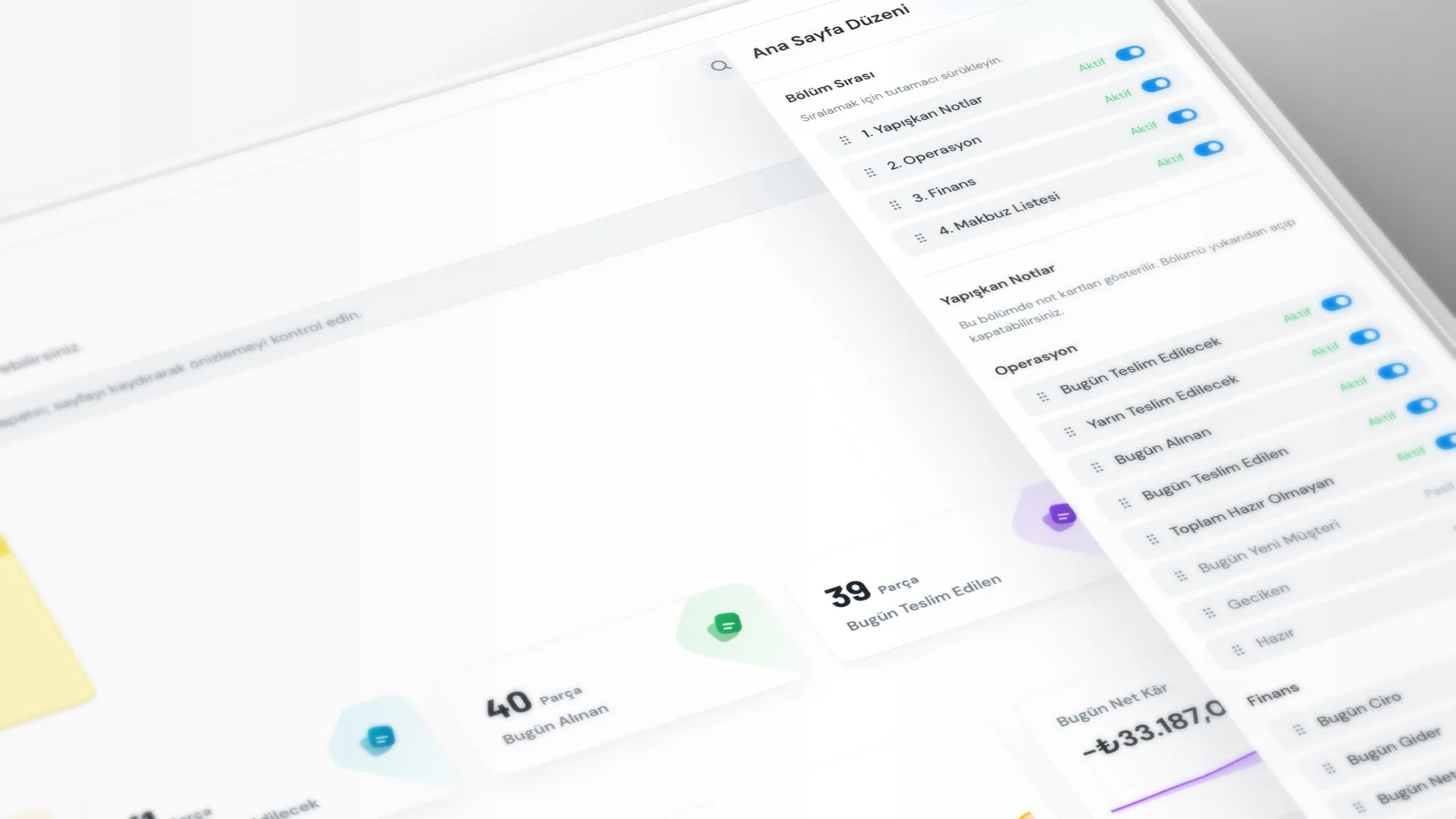
On Home, use Customize to turn sections and summary cards on or off and change their order. That keeps the information you check every day at the counter (deliveries, revenue, receipt lists, sticky notes) in view.
Menu path: General → Home → Customize.
Step by step: home layout
1. Open edit mode
On Home, click Customize. The Dashboard Layout panel opens on the right; the page is a live preview.
2. Set section order
In Section Order, drag sections by the handle. For each section use On / Off:
- Sticky Notes
- Operations
- Finance
- Receipts
3. Show, hide, and reorder cards
Each section has cards under it. Use On / Off to change visibility, and drag within the section to reorder. Cards cannot move across sections.
Example operations cards: Due Today, Received Today, Total Pending. Finance examples: Today’s Revenue, Today’s Expenses, Collection Breakdown.
4. Finish or reset
Scroll the preview to check the result. To leave edit mode, click Done or Close on the panel. To start over, use Reset to Default.
Good to know
- The layout is stored in the app on this computer; it does not sync automatically to another device.
- If you turn a section Off, all cards in that section are hidden on the home screen.
- Viewing home requires the Home permission.
- To temporarily hide figures such as revenue and expenses, click the eye icon on the home screen. That is separate from layout customization.
Tips
- Move the cards you check most often (e.g. due today) to the top of the list.
- Turn unused cards Off so you can simplify the screen.
- If you will share notes within the team, keep the Sticky Notes section on.
- If you mess up the home layout, use Reset to Default to return to the starting settings.
Try KurutemPro for free
Download the desktop app and start with receipts, customer tracking, and reporting right away.