Web Portal
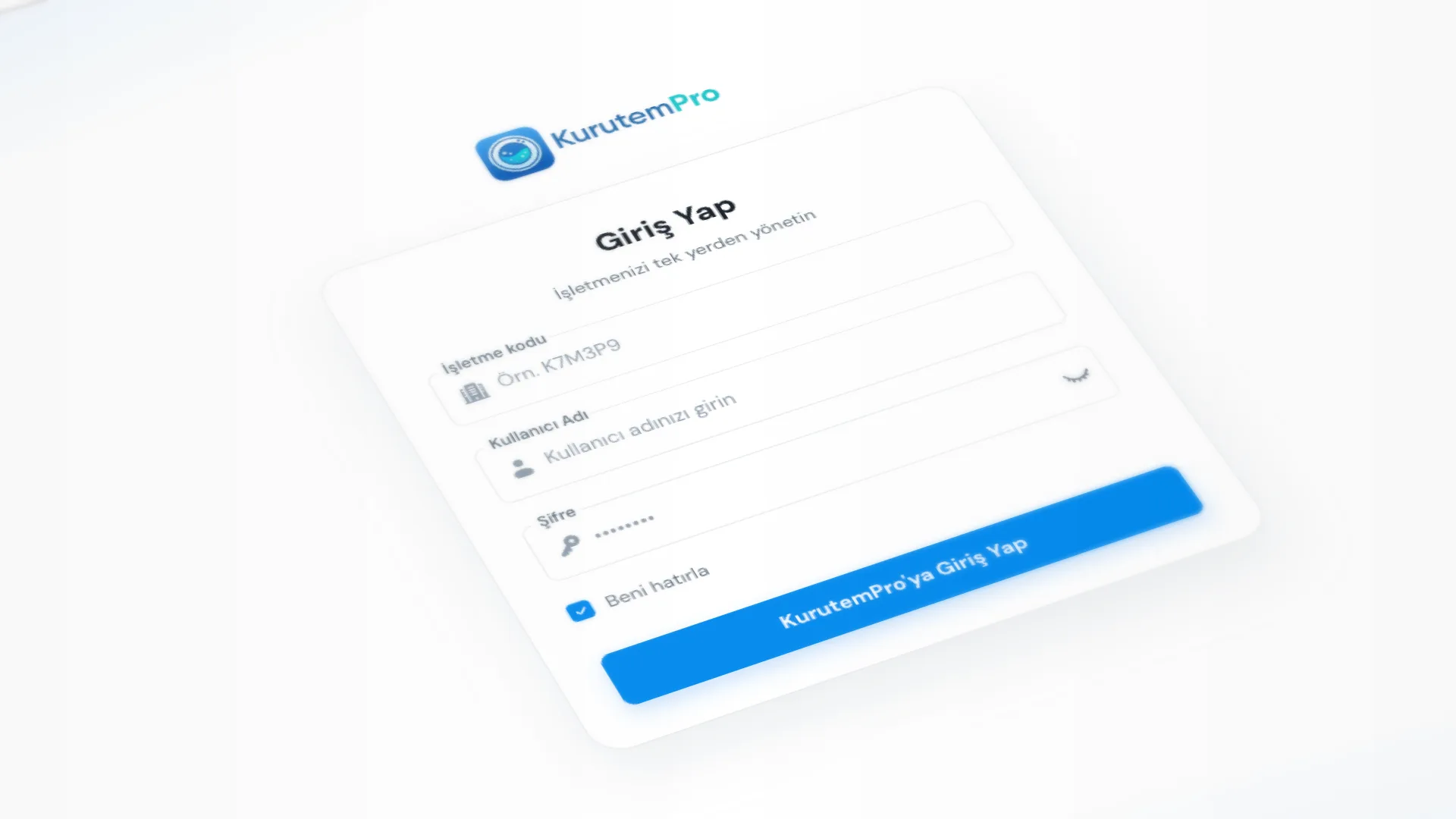
Web Portal lets you view your shop in a browser: home, receipts, customers, and reports. The portal is view-only; create receipts or change records in desktop KurutemPro.
Menu path (desktop): Settings → App Settings → Web portal.
Step by step: sign in to the web portal
1. Enable cloud sync
To see the organization code, Cloud Sync must be on first. If it is off, you see Enable cloud sync first to view your organization code.
2. Get the organization code
On Settings → App Settings → Web portal, open Web portal access:
- Organization code (6 characters)
- Portal URL
- Copy / Open link
Share the code only with authorized people.
3. Sign in in the browser
- Open the Portal URL in your browser.
- Sign in with the Organization code, and the same desktop Username and Password (optional Remember me).
- Open the screens you have permission for; the portal is view-only, so you cannot make changes.
4. What you see in the portal
Depending on your permissions, for example:
- Home summaries
- Receipt list and receipt detail
- Customer list and customer detail
- Financial and product reports
New receipts, editing, barcode, quick operations, expenses, staff, and settings are not in the portal; those stay on desktop.
Good to know
- You sign in with your desktop staff account; your menu permissions still apply.
- Web portal settings appear only in the desktop app.
- Writes always stay on desktop; the portal is view-only.
Tips
- Bookmark the portal URL for phone or home access.
- Decide who should have access before you share the organization code.
- If you cannot sign in, check that the organization code is correct and that cloud sync is on in the desktop app.
Try KurutemPro for free
Download the desktop app and start with receipts, customer tracking, and reporting right away.