Cloud Sync
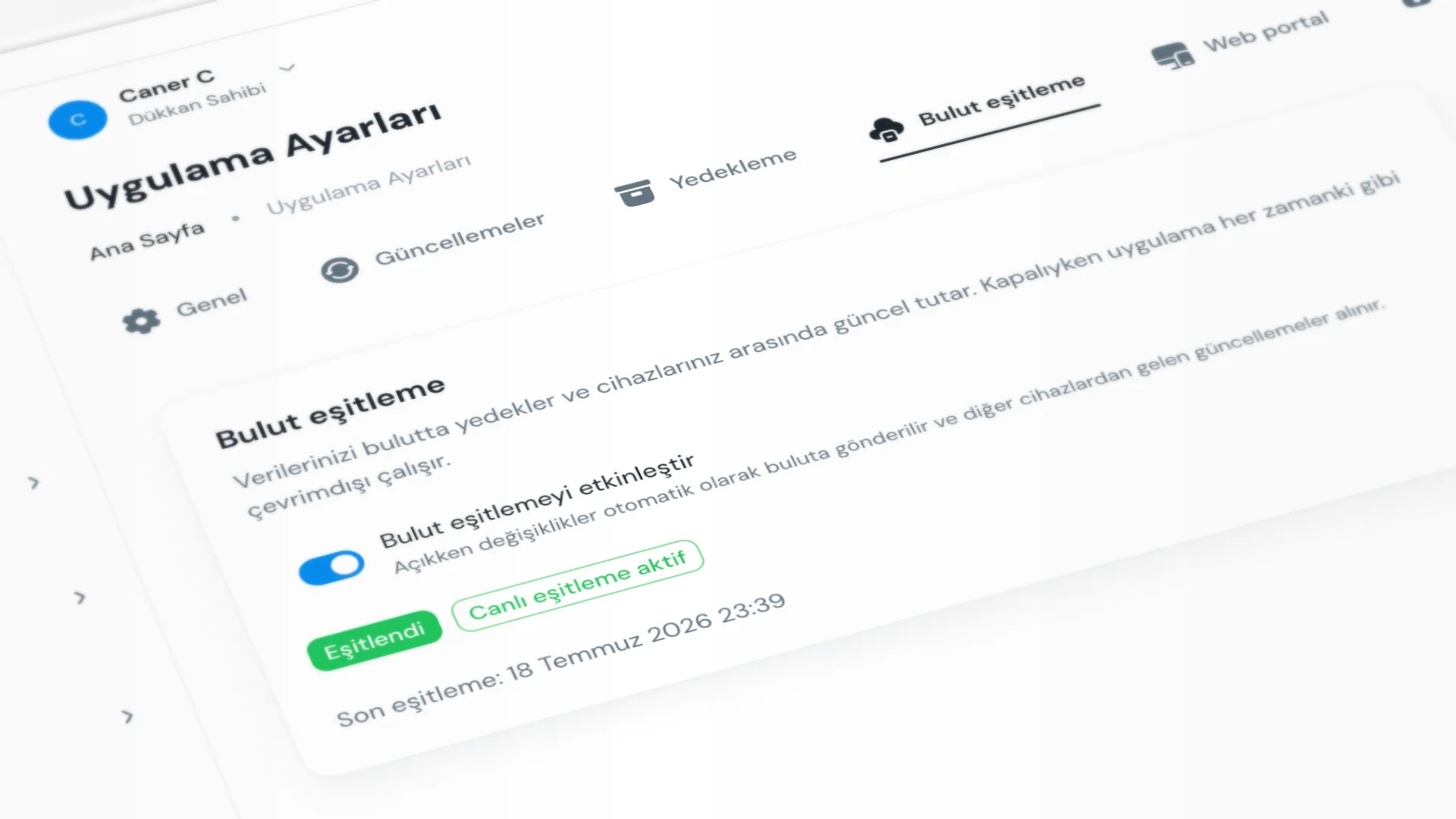
Cloud sync sends your data to the cloud and keeps it current across your devices. When it is on, your changes are pushed automatically and updates from other devices are received. When it is off, KurutemPro works on your computer without internet, as usual.
Menu path: Settings → App Settings → Cloud sync.
Step by step: cloud sync
1. Open the sync screen
Go to Settings → App Settings → Cloud sync. This setting is available in the desktop app only.
2. Enable cloud sync
Turn on Enable cloud sync. The first time you enable it, a cloud account is set up; an internet connection is required.
- When on, changes are pushed to the cloud automatically and updates from other devices are received.
- If you turn it off, the app keeps working offline; your local data stays on this computer.
3. Watch the status
The screen shows sync status (for example Syncing, Synced, Error). Check Last sync and whether live sync is active. Progress messages may appear during upload or download.
4. Web portal and courier
The web portal organization code and courier QR pairing require cloud sync to be on. See Web Portal and Courier Mobile App.
Good to know
- Cloud sync is optional; you can leave it off if you will not use the web portal or courier mobile app.
- Changing sync needs the app settings permission; without it you can only view the settings.
- The first enable needs internet; after that the counter can still work offline. When the internet connection returns, receipts and other items queued while offline are sent.
Tips
- Enable sync if you will use the web portal or courier mobile app.
- If you see an error while enabling sync or after it is on, check your internet connection first.
Try KurutemPro for free
Download the desktop app and start with receipts, customer tracking, and reporting right away.